
HeyBLU Help
Ideal setup
- Outdoors, daylight
- Mount your iPhone (tripod or fence clip). After lock, the iPhone must not move — a bump, wind, or pan can ruin the rest of the session.
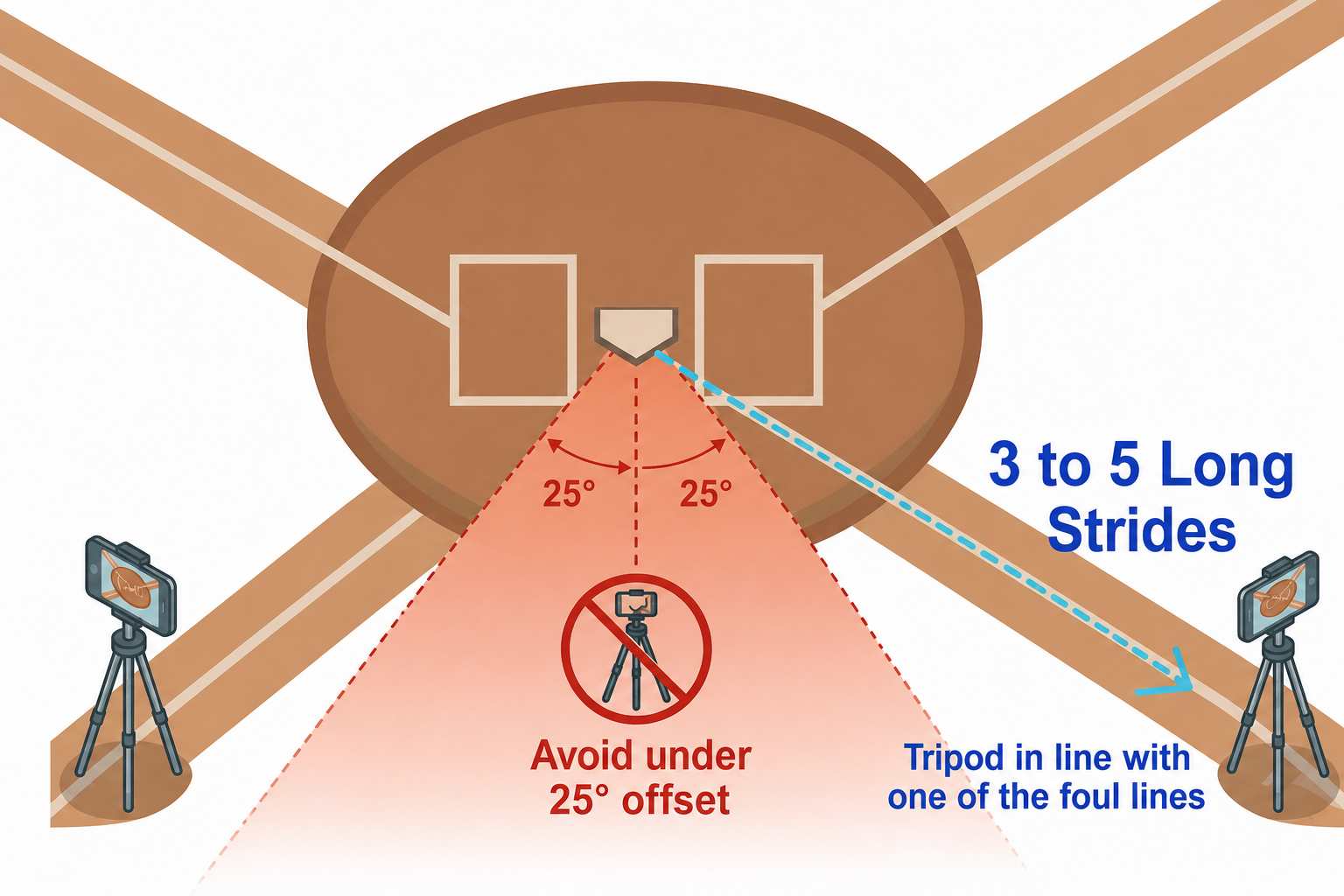
- Distance and angle: about 12 feet back, 12 feet offset — in line with a foul line. See diagram →
- Scan: slow and steady
- Full pitch path: plate and mound on or just inside the red lines. Plate near the bottom of the screen. Room above the strike zone for high pitches.
- Test: throw 2–4 warm-up pitches; use Calibrate if needed
First-time setup tips
- Set up the tripod first. About 4 long strides from home plate, in line with one of the foul lines (example: 12 feet back and 12 feet to the side). Watch → · Diagram →
- Clear home plate — ask players to stand clear before you scan.
- Scan slow and steady, always keeping home plate in view. Watch →
- Walk to the tripod slowly, still keeping home plate in view.
- Mount the iPhone carefully. Avoid shake. Keep fingers off the lens.
- Frame the pitch path. Pan so the blue strike zone sits on one red line and the pitcher’s mound on the other. HeyBLU only tracks between the red lines — it needs the full pitch.
- Home plate near the bottom of the screen
- Room at the top for high pitches
- Tap Adjust Plate to confirm the blue plate is still on the real home plate.
- Pro iPhones — if the zone “ran away,” tap the pulsing distance card (bottom right). Enter real distance to the plate and lens height from the ground. Finger-slide the blue zone and plate back onto the real plate. Then tap Adjust Plate for a final check. Pro fix →
- Throw 2–4 test or warm-up pitches. If two pitches miss in the same direction, Calibrate fixes the next one.
- Play Ball starts your session.
Additional tips
- To hear calls from anywhere on the field, set up a Bluetooth speaker before opening HeyBLU.
- Don’t want to keep a pitch? Use the on-screen delete control.
- Tracking different pitchers? Add them on screen, or during setup.
- Coach from the mound or dugout? Connect a second device (iPad or iPhone). Put both on a shared Wi‑Fi that isn’t either phone’s Personal Hotspot — Personal Hotspot sharing between the two main devices doesn’t work. Tracking and Following devices: Airplane Mode on, then Wi‑Fi on, join that shared network.
- Live batting practice? Use Live At Bats during setup. Consider turning off “Ball” calls so swings aren’t announced as balls.
Something went wrong
Any one of these is enough to cause bad calls or no calls at all:
- 📍 Camera too close or too far — target is 10–15 ft from the plate. Under 10 ft or past 20 ft and detection breaks down.
- 📐 Camera angle off — aim for ~45° offset from the pitch line, roughly in line with a foul line. Less than ~20° offset and inside/outside accuracy degrades. Too far offset (past ~50° or beyond the foul line) and BLU won't see the entire pitch.
- 🏠 Home plate not visible in frame — the real plate must be in the camera view throughout the session.
- 📏 Proper use of the red line guides when placing the iPhone in the tripod mount — the pitch path should run between the two red lines, with the mound along one and the strike zone along the other. Don't put the strike zone in the exact middle of the screen — BLU won't see the entire pitch.
- ⬆️ Strike zone too high in frame — if the top of the zone is near the top of the screen, high pitches clip off. Lower the camera or adjust distance and reframe so the camera can see home plate, and just high enough above the strike zone to see high pitches.
- 🌀 Fast or shaky scan — a quick or jerky scan gives the app a poor 3D map. Move slowly and steadily for ~30 seconds. If you see the strike zone move or shake after setup, your scan was likely too fast or shaky and needs to be redone.
- 🧍 People near the plate during the scan — a batter, catcher, or coach walking through the scene during scanning is a common cause of bad calls throughout the session. Scan with no one present.
- 📵 Indoor cage or nighttime — the app requires outdoor daylight. Indoor cages and nighttime are outside its current range.
- 🔢 Too many calibrations, or one bad one — each calibration invisibly moves the math used for calls. Use Calibrate selectively. If calls don't improve after one or two attempts, close the app and start fresh with a new scan.
- 📱 Handheld or shaky mount — if the camera isn't stationary, calls will degrade over time. Avoid mounting on fences that shake, or using a flimsy tripod on a windy day. Handheld is fine to test a pitch or two, but small movements to you are big movements to the app.
- 🚧 Fence or tripod in the camera view — part of the fence or mount crossing into frame can cause blur that throws BLU's tracking off.
- 🌡️ Hot phone — BLU works the camera hard, and a hot phone makes its job much harder. Use shade, a small fan, or the same cooling methods GameChanger parents use to keep a streaming phone cool on hot days.
This shows up two ways, and both have the same fix — reposition:
- ☀️ Sun high overhead or over your shoulder — glare on the screen while scanning or confirming Adjust Plate. Set up on the opposite foul line instead (1st-base ↔ 3rd-base side). Not a magic fix, but the sun hits the screen at more of an angle instead of straight down, and glare eases.
- 🌇 Sun low in the sky — if it's shining straight into the lens at mount, the tripod is facing toward it. Move to the opposite side of the plate so the camera faces away from the sun instead of into it.
Glare is worse on fields with an older, faded home plate or light-colored dirt close to the plate's color — low contrast plus glare makes it hard to tell where the real plate ends and the ground begins.
Screen protector: a matte/anti-glare one diffuses sunlight and is easier to read outdoors. Glossy or clear reflects it and makes glare worse.
- Tap the pulsing distance number → enter real camera-to-plate and lens height (tape measure).
- Finger-slide the blue plate/zone back onto the real plate.
- If it’s almost on but not flush → Adjust Plate.
- Every pitch in one direction (all inside, all outside, all high, all low)?
- → Use 9-zone Calibrate after your next clean non-swing pitch.
- Blue plate has drifted off the real plate?
- → Use Adjust Plate to slide it back, then test with a pitch before calibrating.
- Calls seem consistently too high, low, inside, or outside — even after calibrating?
- → A zone that's too small will get more "Ball" calls; one too large will get too many "Strike" calls. Check zone size: gear icon → zone size.
- Only swung-at pitches are wrong; non-swings are accurate?
- → You're in Bullpen mode during live at-bats. Switch to Live At Bats mode on the next session.
- Calls were fine, then a few in a row went off, then fine again?
- → After a long idle, the phone's position sense can shift. One Adjust Plate or Calibrate correction usually stabilizes the session.
- Nothing above applies and calls seem random?
- → Redo the scan. Close the app, clear the plate area, walk slowly around home plate for 20–30 seconds, re-place the zone, and start a new session.
HeyBLU stays silent rather than guess—it needs a clean, unobstructed look at enough of the pitch to calculate exactly where it crossed the plate. Speed can be measured from less of the flight than location can, which is why you may see MPH show up without a location or a ball/strike call.
Most common causes: camera more than 12–15 ft from the plate, ball blocked mid-flight (catcher, batter, net), or pitch path outside the red-line framing window.
Fix: Move camera to 10–12 ft. Check red-line framing. See also: batter blocking the view.
The app detects if the phone has moved since you locked in the zone—that's "drift." A thin or rushed scan can make drift worse, but bumps after mounting are a frequent cause too. First-time setup →
After placing the zone, minimize movement; mount without bumping the tripod. If calls look consistently biased after a stable mount, use Calibrate on the primary device.
Fix: Check that the mount is tight and nothing moved. Tighten the mount, avoid bumping the tripod, and on windy days consider weighing it down or moving to a sheltered spot.
Tap the on-screen Calibrate button after a test pitch, then move the yellow dot to where the ball actually crossed. That corrects a mismatch between where the app thinks the plate is and where it physically is.
Adjust HeyBLU (Inside/Outside) under Settings (gear icon) provides a settings-level nudge if needed, but Calibrate is the primary tool.
A batter standing in the box on the same side of the plate as the camera can block the camera's view of part of the pitch as it nears the plate. HeyBLU's recommended camera position is the 1st-base side, so this most often shows up with left-handed batters (only about 10% of batters)—but the real cause is which side the batter is standing on, not handedness.
Fix: Shoot from the recommended ~45° offset from the pitch line, not head-on. That angle keeps most of the pitch path visible even with a batter blocking part of the view.
Usually a batted-ball contamination problem. When a batter makes contact—even a dribbler—the ball's new path gets mixed into the pitch's calculated path, shifting the call by a foot or two even though the pitch itself tracked correctly up to contact.
Fix: Confirm Live At Bats was selected on the session setup screen—Bullpen mode is more likely to track the contact instead of the pitch. Still consistently off after switching? Calibrate on a clean, non-contact pitch, or rescan.
The app tracks any fast-moving ball-shaped object in frame. A catcher's throwback can occasionally look enough like a pitch—especially at longer camera distances (18+ feet) where the ball is smaller and direction checks are less reliable.
Prevention: Camera at 10–12 feet. At that distance the ball is large enough that direction is highly accurate and most throwbacks are filtered out.
Fix after it happens: Tap the trash icon on the pitch card to delete it. This automatically updates the Command Center count.
Calibration corrects a plate position mismatch—that's all it does. Most persistent bad calls come from something else: a bad scan (especially if people were near the plate during setup), camera too far away, batted-ball contamination, or the phone shifting after mounting.
If you've calibrated 3 or more times and calls are still off, stop calibrating. The best fix at that point is to close the app completely, move everyone away from the plate, and start with a fresh scan. Check camera distance. Make sure Live At Bats is selected if batters are in the box.
Each calibration to a bad pitch shifts the plate further from the correct position—more calibrations make a bad scan worse, not better.
Fields with little visual contrast—like an all-dirt infield—give the app less to anchor to, so the phone's position sense can drift over time, especially during long idle periods between pitches. The result is calls that are off even with good framing and a solid initial scan.
Fix: Re-scan more frequently than you would on a grass field. If calls start drifting mid-session, a quick Calibrate on a clean pitch often stabilizes things. For stubborn drift, end the session, move everyone away from the plate, and start fresh.
Fast fix: Android phone hotspot (no SIM needed) or a small travel router—both iPhones join it.
Full walkthrough: Connect two devices →
Setup details
Do not skip these steps:
- Scan the area: Follow the in-app instructions and move slowly so the app can build a solid 3D map. Scan with no one near the plate—a batter, catcher, or umpire walking through the scene during the scan is a common cause of bad calls throughout the session. First-time setup →
- Place the zone: This is initial placement only: line up the virtual strike zone with the real home plate (on or just above the dish), matching position and angle as closely as you can. Try not to bump the phone or plate while the zone is set—you will mount next, then adjust the camera view on Mount & Verify.
- Mount and realign: Mount on the tripod—expect the zone to shift. Set tripod height about mid-zone (see real plate and highest expected pitch in frame). Slide the zone onto the plate, use Distance/Height or Up/Down for size, use Adjust Plate for overhead alignment; on Pro iPhones enter measured distance and lens height. Keep the full pitch path between the red lines (see wrong and correct placements). If you see drift or unstable tracking, check that the mount is tight and nothing moved.
- Calibrate: Tap Play Ball, throw a test pitch if the call looks off, then tap Calibrate and move the yellow dot to where the pitch actually crossed. First-time setup →
- Tap "Play Ball": HeyBLU calls pitches once you're tracking live (use Pause, Warm Up anytime you need to stop).
Note: After End Session you can review pitches (pitch count and step through calls).
On Mount & Verify, the two thick vertical red lines mark the sideways detection window. Center the pitch path between them: put the blue strike zone on one red line (plate edge) and keep the mound visible beside the other. Do not center the zone between the red lines.
The diagram below may still say cyan in a few labels from an older capture—read red; the wrong vs correct placement is what matters.
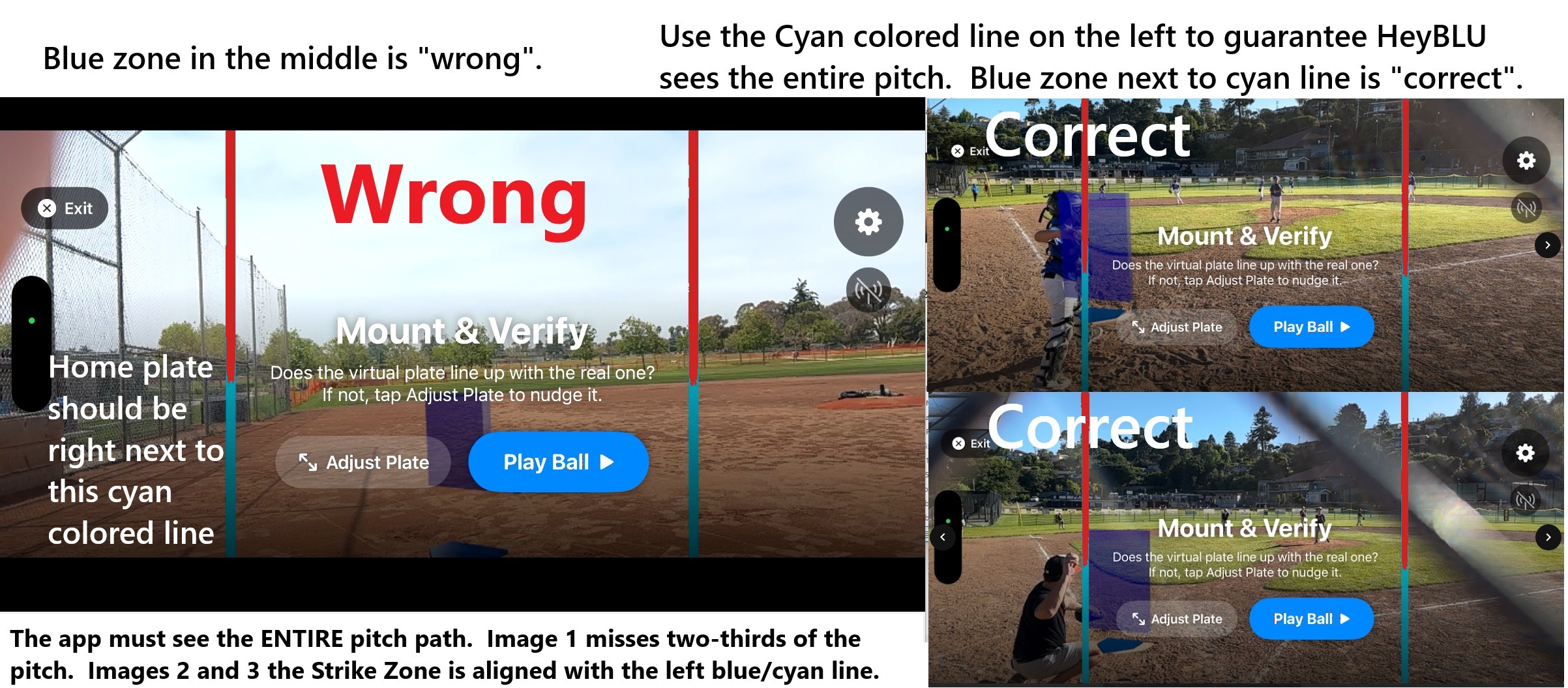
Set the iPhone on the tripod so the camera sits about mid-zone—roughly half the height of your typical batter’s strike zone. That usually means lower than most people expect.
Stay within the zone vertically: minimum height is the bottom of the zone; maximum is the top of the zone. Mid-zone is the target.
When you pick distance and height, check the live camera view before Play Ball. You need to see the real home plate and enough room above the plate for the highest pitch you expect that session. If high pitches clip off screen, lower the camera, adjust distance, and reframe the pitch path between the red lines.
Pro iPhone: after you mount, enter measured camera-to-plate distance and lens height from the ground in the app.
The mound distance setting adjusts an internal detection window — it tells the app roughly where to start looking for the ball in flight. It does not affect plate-crossing accuracy.
What does affect call quality: camera-to-plate distance (target: 10–12 ft) and camera angle (target: ~45° from the pitch line). The pitcher can be at 38 ft or 60 ft — those don't change what the camera needs to do at the plate end.
They fix different problems:
Adjust Plate — the blue plate overlay has drifted off the real plate. Tap Adjust Plate for a bird's-eye overhead view and use the arrows to slide it back. This moves the plate and zone together. Use this first whenever the zone looks out of position.
9-Zone Calibrate — the blue plate looks correct visually, but calls land in the wrong spot (e.g., every pitch reads outside when it's down the middle). After a pitch, tap Calibrate and move the yellow dot to where the ball actually crossed. This fine-tunes the math without moving what you see on screen.
Quick rule: blue box off the plate → Adjust Plate. Blue box looks right but calls are wrong → Calibrate.
- Only calibrate after a non-swing pitch. If the batter made contact, the app may have tracked the batted ball rather than the pitch. Calibrating to that data moves the zone in the wrong direction.
- One calibration after a clean pitch is usually enough. If you calibrate repeatedly and calls keep feeling wrong, calibration isn't solving the real problem — re-scan instead.
- The Apply button is grayed out if there wasn't enough data from the last pitch. This is intentional — calibrating from a poor-quality trajectory makes calls less accurate, not more.
See also: Adjust Plate vs. Calibrate.
Found in the gear menu. Controls how certain the app needs to be before it counts a moving object as a baseball. Default is 75 — leave it there unless you have a specific problem.
- Higher (80–85): more selective, fewer calls but less likely to count non-pitches. Try this if you're getting frequent phantom counts from reflections or background movement.
- Lower (65–70): less selective, more calls but more false counts. Try this only if pitches are regularly going uncalled despite a good scan and correct camera placement.
This setting does not reset automatically — if you experiment and calls get worse, go back to 75. Camera distance (10–12 ft) solves most detection problems more reliably than adjusting this setting.
During a session
Choose on the session setup screen before tapping Play Ball.
Bullpen — No batter in the box. The app tracks every pitch and calls both balls and strikes out loud.
Live At Bats — Batter is in the box. The app adjusts its detection logic to reduce false counts from swings and contact near the plate. Ball and strike calls still play out loud; toggle ball-call audio off if you'd prefer silence when a batter swings at a pitch outside the zone.
If you run Bullpen mode during live at-bats, swings and contact can produce incorrect calls or phantom pitch counts. Always select Live At Bats when hitters are up.
The zone is fully adjustable. Start with one of the age-level presets, then fine-tune from there. Two ways to adjust during a session:
- Gear icon (top right of the live screen) — zone size controls with presets sized for different age groups, plus manual adjustment.
- After a session ends — a "Resize Zone" button appears on the post-session screen so you can set the correct size before your next session.
The app remembers the last size you used. With a Command Center device, Short, Default, and Tall presets let you toggle quickly between batter heights during live at-bats.
If calls seem consistently too high, too low, inside, or outside — check zone size first. A zone that's too small will get more "Ball" calls; one too large will get too many "Strike" calls.
Add pitchers before or during a session:
- Before you start — on the session setup screen (before Track Pitches), tap + in the pitcher section to add names.
- During a session — tap the pitcher chip bar at the top of the screen to switch pitchers or add a new name.
- From the Command Center — the iPad or second iPhone shows the same pitcher list and lets you switch remotely.
Every pitch in the session report and spreadsheet is tagged with the pitcher who threw it. Names are saved to the roster and available next session.
To delete a pitcher: long-press the name on the main screen, or tap the gear icon and the – next to the name.
Tap the pitch card at the bottom of the screen after the unwanted pitch appears — a trash icon will appear. Tap it to delete. The count updates immediately, and if a Command Center is connected it syncs automatically.
Useful when a catcher's throwback or equipment accidentally triggered a count.
When a second iOS device joins via Share Game, it becomes a Command Center showing:
- Live pitch dots on the strike zone — color-coded by location
- Running pitch count, ball count, and strike count
- Pitcher name with the ability to switch pitchers remotely
- 9-zone Calibrate tool — apply calibrations from the iPad without touching the primary phone
- Full pitch history for the session
The Command Center is view-and-control — the iPad operator can do nearly everything the primary phone operator can, from wherever the coach is standing. Setting one up for a tryout or game day? See the Field Kit.
Tap End Session → Summary. From there:
- Share as image — session heatmap and report, easy to text to a parent or coach.
- 3D replay — tap a pitch for a 3D trajectory replay, or view the whole session in 3D.
- Export to spreadsheet — one row per pitch: location, speed, pitcher name, timestamp. Pro feature.
- Session history — every past session is saved in the History tab, including a sample report you can open before your first bullpen.
Session history and the sample report are free to browse. Saving real sessions and the spreadsheet export require a HeyBLU subscription.
Single-phone bullpen tracking does not need Wi‑Fi. Follow Game and Command Center need your Umpire (tracking) iPhone and your second device to find each other. Standard iOS Personal Hotspot blocks device-to-device communication by default—simply joining the same Wi‑Fi or hotspot is not always enough.
What works (easiest first)
- Android phone hotspot — no SIM or data plan required; both iPhones join it. Our recommended field setup.
- Battery travel router (~$20, e.g. TP-Link TL-WR802N or GL‑iNet pocket router) — best for 3+ phones; all devices join; no internet required.
- 3rd-party iPhone hotspot (someone else’s phone) — works only if the Umpire iPhone (primary) first turns on Airplane Mode, then turns Wi‑Fi back on, and joins that hotspot before opening Follow Game or Command Center.
What does not work
- Umpire iPhone acting as its own hotspot — the tracking phone cannot host the connection for the second device.
- Two iPhones on the same iOS Personal Hotspot without the Airplane Mode + Wi‑Fi step above on the Umpire phone.
Before you try again
- Settings → HeyBLU → Local Network On on each iPhone.
- Both devices on a working network—Android hotspot or travel router is most reliable.
- On the tracker: turn on Share Game (antenna) after all phones are on Wi‑Fi.
- Open Follow Game or Command Center after everyone is connected.
Multiple second screens (experimental)
One tracking iPhone can share with up to 7 other devices (typical: 1 Command Center + up to 6 Follow Game). Follow Game and Command Center can connect at the same time. The tracker antenna shows connected/7. 1–2 screens are field-tested; 3+ are supported but experimental—prefer a travel router. Use only one Command Center for remote control per session.
Need more detail? See the checklist under First-time setup → what to check. Running a tryout or game-day setup? See the Field Kit for gear and a full playbook.
Basics & product
HeyBLU is an iPhone app that turns a mounted phone into a practice umpire. It tracks where each pitch crosses the plate, compares that spot to your strike zone, and calls Ball or Strike out loud. A HeyBLU subscription saves sessions with heatmaps and reports. See pricing or our strike zone tech guide.
No. HeyBLU tracks where the ball crossed the plate, not whether the batter swung. A batter swinging at a pitch that crosses outside the zone is still a ball to HeyBLU—the game outcome (strike by swing) is separate.
Use Live At Bats mode when hitters are in the box. See below.
Our goal was error rates no larger than a ball's width. In pristine conditions we are seeing an average 1.5 inch miss. In the wild—on your field, while you get used to proper scans and setup—anything over a 3 inch miss is either an occasional error, or it means you need to re-adjust or re-scan.
Accuracy depends a lot on setup. Take your time, get to know the app, and calls become consistent. When you're seeing consistently bad calls, the Troubleshooting section covers the most common causes.
For velocity accuracy, see How accurate is the MPH reading?
HeyBLU is optimized for pitch location. Speed comes from the same camera, so expect ±5 MPH—useful for tracking effort and trends, not a radar-gun substitute.
HeyBLU — 14-day free trial, then $12.99/mo or $79.99/yr.
Follow Game — Non-subscribers can follow along on their own iPhone when a subscriber shares their live feed.
Full pricing → · League pilots: info@heyblu.ai.
Yes. If you're not at the field yet, pick your next bullpen day in the app and HeyBLU sends one reminder that morning. Your 14-day trial starts only when you tap Start Trial — whenever that is.
We don't record or store video, and we don't capture or store images. Only data (calls, pitch info, session stats) is used to improve the app. Your kids are not being filmed or photographed.
Non-Pro iPhones are ideal for bullpen setup (for example a refurbished iPhone 13). An iPhone 12 or newer should work. Pro models (Pro, Pro Max, etc.) work too—bring a measuring tape and enter camera-to-plate distance and lens height after you mount.
Note: Please include your exact iPhone model when you report an issue so we can track device-specific performance.
Outdoor, daylight, tripod 10–15 feet from the plate offset ~45° from the pitch line, pitch speeds ~60 MPH or less (tested), regulation baseballs or yellow softballs.
Background behind the pitcher matters: dark or natural backgrounds work best. A white fence, white wall, or light-colored surface behind the pitcher makes a white baseball hard to detect — if that's your only option, try shooting from the other side of the plate. Also avoid pointing the camera into direct sun.
Brand-new pearl-white baseballs may glare in bright sun.
Indoor cages and nighttime are outside the app's current range. The dimmer the natural light, the more detection quality drops — deep shade can affect tracking even during the day. Camera angle less than ~20° from the direct pitch line causes inside/outside accuracy to degrade. Tripod past ~15 ft from the plate (10–12 ft is ideal). Pitch speeds regularly above ~65–70 MPH (untested). Hard breaking balls (still testing). Phone below ~30% battery. Non-regulation balls (wiffles, etc.) may not track correctly.
Android is not supported as a tracking phone—HeyBLU runs on iPhone only.
However, an Android phone makes an excellent Wi‑Fi hotspot when you need Follow Game or Command Center. Any cheap Android will do; it does not need a SIM or data plan—just turn on hotspot and have both iPhones join it. See how to connect two devices.
Use a secondary iPhone or iPad to open Command Center or Follow Game. The main tracking session always runs on iPhone.
Start with a charged phone. On a full charge, the app may work for up to about 90 minutes of active tracking, depending on your iPhone model, brightness, heat, and cellular use. For long games or back-to-back sessions, a battery pack can help—use one only if the phone still fits securely on your mount.
For more on batteries, power, shade, and cooling in the dugout, see the GameChanger Admins Facebook group; it has lots of practical tips from coaches and scorekeepers.
HeyBLU keeps the screen awake while the app is open—you do not need to change Auto-Lock. Before you head to the field:
- Wipe the camera lens before setup.
- Volume up, or a Bluetooth speaker / earbuds so the pitcher can hear ball/strike calls from the mound.
- Settings → HeyBLU → Local Network On if you use Command Training, Follow Game, or Calibrate from another device.
Charge your phone before you go; Low Power Mode and Do Not Disturb are optional.
One iPhone (bullpen only): HeyBLU does not need cell service or internet to call pitches. Airplane mode is optional. Phone calls and alerts do not stop tracking, but they can interrupt ball/strike audio—Do Not Disturb is optional if you want fewer interruptions.
Two devices (Follow Game, Command Center, or Calibrate from another phone): use an Android hotspot or travel router when you can. If you must use someone else’s iPhone hotspot, the Umpire (tracking) iPhone must turn on Airplane Mode, then turn Wi‑Fi back on, and join that hotspot before connecting. See how to connect two devices.
iOS Screen Recording is supported, but it puts extra strain on your iPhone while the camera and tracking are already working hard. You should expect lower accuracy and more missed pitches than with recording off. For the most reliable calls, do not screen-record during a HeyBLU session; if you need video, use a second phone or camera on the side when possible.
We read every report. To reach us:
- Email support@heyblu.ai with the details below.
- Use our support form.
- Want to refer a coach or league? Send them to download HeyBLU.
When reporting an issue, please include:
- Your exact iPhone model.
- The environment (Outdoor/Indoor, Sunny/Cloudy).
- The Age Group and Mound Distance settings you used (set these to match the game you're watching).
- A brief description of what happened (e.g., "No call on a clear strike down the middle," "Called ball but it was a strike," or "Tracking was unstable the whole game.")
- Did you see "Tracking unstable," "Check camera," or "DRIFT CRITICAL" (or similar)? If yes, when (e.g., whole game, after a bump)?
- Did you use on-screen Calibrate (9-zone grid)? Did you use Settings Adjust HeyBLU (Inside/Outside)? If yes, how many steps?