
HeyBLU Help & FAQ
Search answers, browse topics below, or jump to the printable Field Guide.
Key to success
- Outdoor bullpen · tripod 10–15 ft inside the fence · daylight.
- Red lines: full pitch path between them—zone on one line, mound on the other. See diagram →
- Two devices? Android hotspot or travel router—not every Wi‑Fi works. What works → · Print version →
First-time setup
You need an iPhone 12 or later, an outdoor bullpen, and a tripod inside the fence. Follow in-app prompts, or:
- Tripod 10–15 ft from the plate, offset to one side; camera about mid-zone height.
- Scan slowly around the plate (~30 seconds).
- Place zone on the real plate, then walk to the tripod.
- Mount & frame—expect shift; realign; pitch path between red lines.
- Play Ball → test pitch → Calibrate if calls are systematically off.
The Basics
HeyBLU is an iPhone app that turns a mounted phone into a practice umpire. It tracks where each pitch crosses the plate, compares that spot to your strike zone, and calls Ball or Strike out loud. A HeyBLU subscription saves sessions with heatmaps and reports. See pricing or our strike zone tech guide.
HeyBLU's job is to provide pitch location vs. the strike zone. It does not judge whether a batter swung or checked their swing.
When a batter swings at a ball, HeyBLU still reports it as a ball based on where the pitch crossed the plate—not whether the batter offered.
With live batters, the default audio setting is silence on ball calls, so you don't hear "Ball" on swings. Strikes are still announced.
The strike zone is fully adjustable. Select from four sizes based on age level, then customize from there. Adjust during a session until you find the zone that fits your league or drill.
With a second device (Command Center), use Short, Default, and Tall zone presets to quickly toggle between shorter, taller, and the most common player height when working with live batters.
Our goal was error rates no larger than a ball's width. In pristine conditions we are seeing an average 1.5 inch miss. In the wild—on your field, while you get used to proper scans and setup—anything over a 3 inch miss is either an occasional error, or it means you need to re-adjust or re-scan.
HeyBLU's accuracy depends a lot on setup and calibration. Take your time, get to know the app, and your accuracy will become consistent.
The same technology that powers ball/strike calls is sub-optimal for MPH, so expect velocity readings to be about ±5 MPH—not a radar-gun replacement.
HeyBLU — 14-day free trial, then $4.99/mo or $49.99/yr: live ball/strike calls, saved sessions, Command Center, unlimited pitchers, and bullpen reports.
Follow Game — If a subscriber shares their live pitch location feed, non-subscribers with the same HeyBLU app can “Follow Game” with their own iPhones.
Full pricing → · League pilots: info@heyblu.ai.
We don't record or store video, and we don't capture or store images. Only data (calls, pitch info, session stats) is used to improve the app. Your kids are not being filmed or photographed.
Devices & Environment
Non-Pro iPhones are ideal for bullpen setup (for example a refurbished iPhone 13). An iPhone 12 or newer should work. Pro models (Pro, Pro Max, etc.) work too—bring a measuring tape and enter camera-to-plate distance and lens height after you mount.
Note: Please include your exact iPhone model when you report an issue so we can track device-specific performance.
Best today: outdoor bullpen or practice in daylight, tripod 10–15 feet inside the fence, pitch speeds ~60 MPH or less (tested), and regulation baseballs or yellow softballs. See First-time setup or the Field Guide.
Avoid pointing the camera into the setting sun or bright white backgrounds in the pitch path—move to the other side of the plate if you have glare.
Brand-new pearl-white baseballs may glare in bright sun.
Indoor or artificial lighting, dusk, hand-held use, tripod past ~15 ft from the plate (~20 ft can work—closer is better), pitch speeds regularly above ~65–70 MPH (untested; often works, less consistent than ≤60), hard breaking balls (still testing), and phone below ~30% battery. Non-regulation balls (wiffles, etc.) may not track correctly.
Android is not supported as a tracking phone—HeyBLU runs on iPhone only.
However, an Android phone makes an excellent Wi‑Fi hotspot when you need Follow Game or Command Center. Any cheap Android will do; it does not need a SIM or data plan—just turn on hotspot and have both iPhones join it. See how to connect two devices.
Use a secondary iPhone or iPad to open Command Center or Follow Game. The main tracking session always runs on iPhone.
Start with a charged phone. On a full charge, the app may work for up to about 90 minutes of active tracking, depending on your iPhone model, brightness, heat, and cellular use. For long games or back-to-back sessions, a battery pack can help—use one only if the phone still fits securely on your mount.
For more on batteries, power, shade, and cooling in the dugout, see the GameChanger Admins Facebook group; it has lots of practical tips from coaches and scorekeepers.
HeyBLU keeps the screen awake while the app is open—you do not need to change Auto-Lock. Before you head to the field:
- Wipe the camera lens before setup.
- Volume up, or a Bluetooth speaker / earbuds so the pitcher can hear ball/strike calls from the mound.
- Settings → HeyBLU → Local Network On if you use Command Training, Follow Game, or Calibrate from another device.
Charge your phone before you go; Low Power Mode and Do Not Disturb are optional.
One iPhone (bullpen only): HeyBLU does not need cell service or internet to call pitches. Airplane mode is optional. Phone calls and alerts do not stop tracking, but they can interrupt ball/strike audio—Do Not Disturb is optional if you want fewer interruptions.
Two devices (Follow Game, Command Center, or Calibrate from another phone): use an Android hotspot or travel router when you can. If you must use someone else’s iPhone hotspot, the Umpire (tracking) iPhone must turn on Airplane Mode, then turn Wi‑Fi back on, and join that hotspot before connecting. See how to connect two devices.
iOS Screen Recording is supported, but it puts extra strain on your iPhone while the camera and tracking are already working hard. You should expect lower accuracy and more missed pitches than with recording off. For the most reliable calls, do not screen-record during a HeyBLU session; if you need video, use a second phone or camera on the side when possible.
Connect two devices
Single-phone bullpen tracking does not need Wi‑Fi. Follow Game and Command Center need your Umpire (tracking) iPhone and your second device to find each other. Standard iOS Personal Hotspot blocks device-to-device communication by default—simply joining the same Wi‑Fi or hotspot is not always enough.
What works (easiest first)
- Android phone hotspot — no SIM or data plan required; both iPhones join it. Our recommended field setup.
- Battery travel router (~$20, e.g. TP-Link TL-WR802N or GL‑iNet pocket router) — best for 3+ phones; all devices join; no internet required.
- 3rd-party iPhone hotspot (someone else’s phone) — works only if the Umpire iPhone (primary) first turns on Airplane Mode, then turns Wi‑Fi back on, and joins that hotspot before opening Follow Game or Command Center.
What does not work
- Umpire iPhone acting as its own hotspot — the tracking phone cannot host the connection for the second device.
- Two iPhones on the same iOS Personal Hotspot without the Airplane Mode + Wi‑Fi step above on the Umpire phone.
Before you try again
- Settings → HeyBLU → Local Network On on each iPhone.
- Both devices on a working network—Android hotspot or travel router is most reliable.
- On the tracker: turn on Share Game (antenna) after all phones are on Wi‑Fi.
- Open Follow Game or Command Center after everyone is connected.
Multiple second screens (experimental)
One tracking iPhone can share with up to 7 other devices (typical: 1 Command Center + up to 6 Follow Game). Follow Game and Command Center can connect at the same time. The tracker antenna shows connected/7. 1–2 screens are field-tested; 3+ are supported but experimental—prefer a travel router. Use only one Command Center for remote control per session.
Printable summary: Field Guide → Connect two devices.
Setup
Do not skip these steps:
- Scan the area: Follow the in-app instructions and move slowly so the app can build a solid 3D map. First-time setup →
- Place the zone: This is initial placement only: line up the virtual strike zone with the real home plate (on or just above the dish), matching position and angle as closely as you can. Try not to bump the phone or plate while the zone is set—you will mount next, then adjust the camera view on Mount & Verify.
- Mount and realign: Mount on the tripod—expect the zone to shift. Set tripod height about mid-zone (see real plate and highest expected pitch in frame). Slide the zone onto the plate, use Distance/Height or Up/Down for size, use Adjust Plate for overhead alignment; on Pro iPhones enter measured distance and lens height. Keep the full pitch path between the red lines (see wrong and correct placements). If you see drift or unstable tracking, check that the mount is tight and nothing moved.
- Calibrate: Tap Play Ball, throw a test pitch if the call looks off, then use Calibrate and tap the 9-zone grid where the pitch crossed. First-time setup →
- Tap "Play Ball": HeyBLU calls pitches once you're tracking live (use Pause, Warm Up anytime you need to stop).
Note: After End Session you can review pitches (pitch count and step through calls).
On Mount & Verify, the two thick vertical red lines mark the sideways detection window. Center the pitch path between them: put the blue strike zone on one red line (plate edge) and keep the mound visible beside the other. Do not center the zone between the red lines.
The diagram below may still say cyan in a few labels from an older capture—read red; the wrong vs correct placement is what matters.
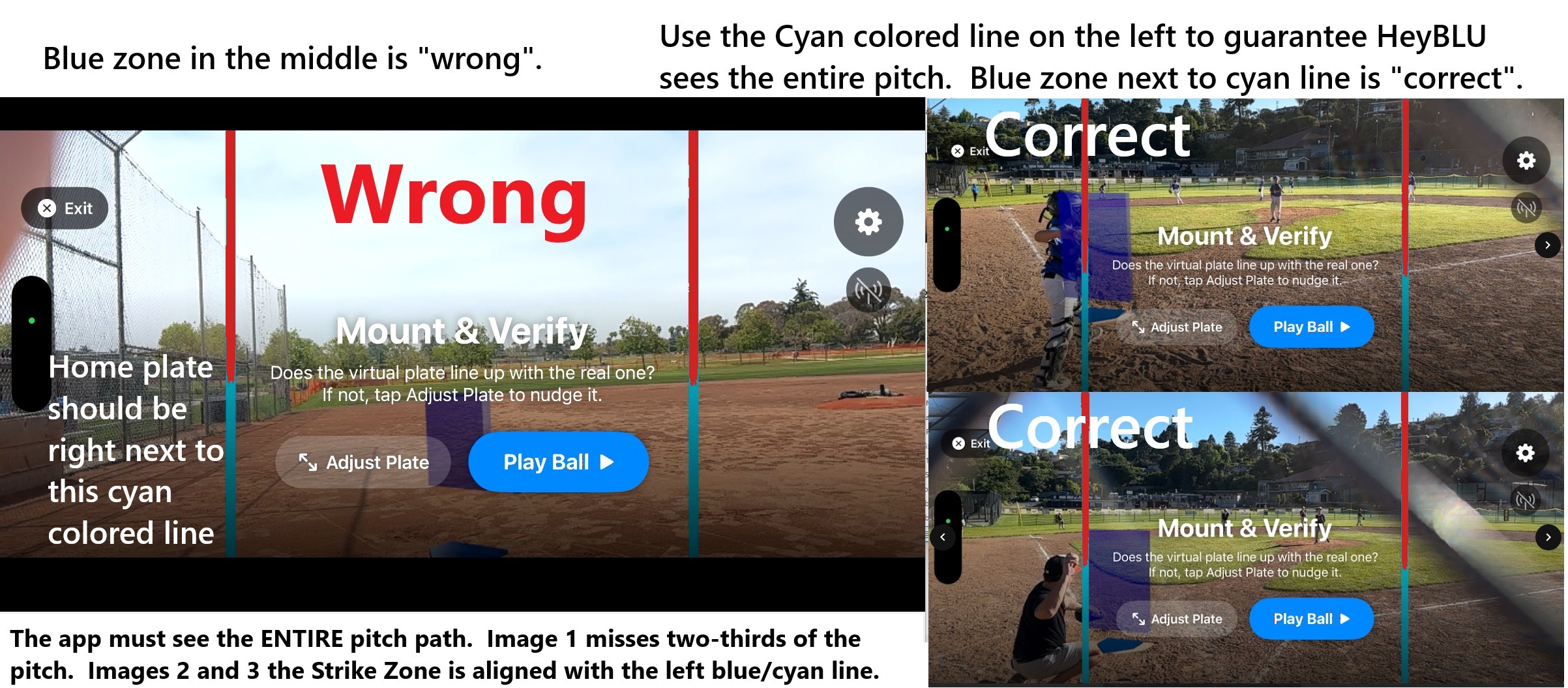
Set the iPhone on the tripod so the camera sits about mid-zone—roughly half the height of your typical batter’s strike zone. That usually means lower than most people expect.
Stay within the zone vertically: minimum height is the bottom of the zone; maximum is the top of the zone. Mid-zone is the target.
When you pick distance and height, check the live camera view before Play Ball. You need to see the real home plate and enough room above the plate for the highest pitch you expect that session. If high pitches clip off screen, lower the camera, adjust distance, and reframe the pitch path between the red lines.
Pro iPhone: after you mount, enter measured camera-to-plate distance and lens height from the ground in the app.
After you tap "End Session," use the Summary button on screen. It includes share options: a session report image and a spreadsheet with detailed pitch data you can download and share.
Troubleshooting
Fast fix: Android phone hotspot (no SIM needed) or a small travel router—both iPhones join it.
At the field: Field Guide → Fix a problem · Full walkthrough: Connect two devices →
HeyBLU is designed to stay silent rather than guess. It only announces a call when it is highly confident in the ball's trajectory. If the ball is blocked from the camera's view (by the catcher, umpire, or a net) for too much of its flight, or if the tracking quality was poor, it may stay silent or show a warning.
If calls are missing even with a clear view, check red-line framing: the full pitch path must stay between the red guides—not the zone centered in the middle.
The app detects if the phone has moved since you locked in the zone—that's "drift." A thin or rushed scan can make drift worse, but bumps after mounting are a frequent cause too. First-time setup · Field Guide fixes.
After placing the zone, minimize movement; mount without bumping the tripod. If calls look consistently biased after a stable mount, use Calibrate on the primary device.
Fix: Check that the mount is tight and nothing moved. Tighten the mount, avoid bumping the tripod, and on windy days consider weighing it down or moving to a sheltered spot.
If HeyBLU keeps calling pitches consistently outside or inside when they look like strikes, use the on-screen Calibrate button after a test pitch and tap where the ball actually crossed on the 9-zone grid. That is now the main way to lock in accurate inside/outside alignment after mounting.
Adjust HeyBLU (Inside/Outside) still exists under Settings (gear icon) if you need a settings-level nudge, but start with Calibrate on the primary device for consistent misses.
Feedback
We read every report. To reach us:
- Email support@heyblu.ai with the details below.
- Use our support form.
- Want to refer a coach or league? Join the waitlist on the homepage.
When reporting an issue, please include:
- Your exact iPhone model.
- The environment (Outdoor/Indoor, Sunny/Cloudy).
- The Age Group and Mound Distance settings you used (set these to match the game you're watching).
- A brief description of what happened (e.g., "No call on a clear strike down the middle," "Called ball but it was a strike," or "Tracking was unstable the whole game.")
- Did you see "Tracking unstable," "Check camera," or "DRIFT CRITICAL" (or similar)? If yes, when (e.g., whole game, after a bump)?
- Did you use on-screen Calibrate (9-zone grid)? Did you use Settings Adjust HeyBLU (Inside/Outside)? If yes, how many steps?